
SIM PIN Protection: How to Stop SIM-Swapping Identity Theft
Build a compliant 2026 small business password policy with NIST length rules, password manager rollout steps, and MFA enforcement checklists.
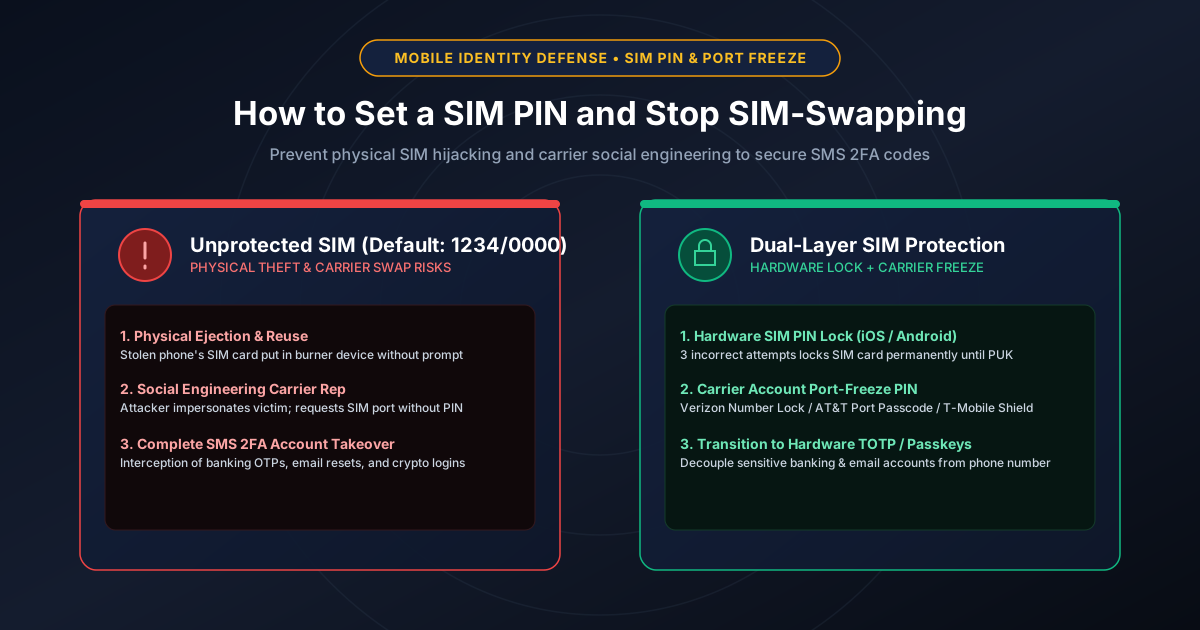
Figure 2.1: Dual-layer mobile identity defense: Hardware SIM PIN lock vs. Carrier account port-freeze protection.
Quick Answer: A SIM PIN is a 4-to-8-digit security code stored directly on your physical SIM card or eSIM chip that locks cellular network access whenever your device restarts or the card is transferred to another phone. Entering an incorrect PIN 3 times triggers an immediate hardware lockout requiring an 8-digit PUK (Personal Unblocking Key). Combining a hardware SIM PIN with a carrier-level Port Freeze / Account PIN stops attackers from hijacking your phone number via social engineering to intercept SMS two-factor authentication codes for online banking and cryptocurrency accounts.
The Anatomy of a SIM Swap Attack
SIM swapping (also called SIM hijacking) has become one of the most devastating attack vectors targeting consumers and corporate executives. The attack does not require hacking into your physical phone; instead, the adversary exploits the cellular carrier's support desk:
- Reconnaissance & Credential Harvesting: The attacker purchases your personal information from dark web data breaches: full legal name, date of birth, home address, and Social Security Number (SSN).
- Carrier Social Engineering: The attacker contacts your cellular provider (Verizon, AT&T, T-Mobile, Vodafone, etc.) claiming to be you. They allege that their phone was dropped in water or stolen and request that your phone number be transferred to a new SIM card or eSIM in their possession.
- Instant Signal Disconnection: The moment the carrier representative approves the swap, your phone suddenly loses cellular reception and displays
No ServiceorSOS Only. You can no longer send texts, place calls, or receive verification codes. - SMS Account Takeover: With your phone number active on their burner phone, the attacker triggers password resets across your primary email, bank accounts, and crypto wallets. Because your phone number receives the SMS one-time passcode (OTP), the attacker bypasses two-factor authentication in minutes.
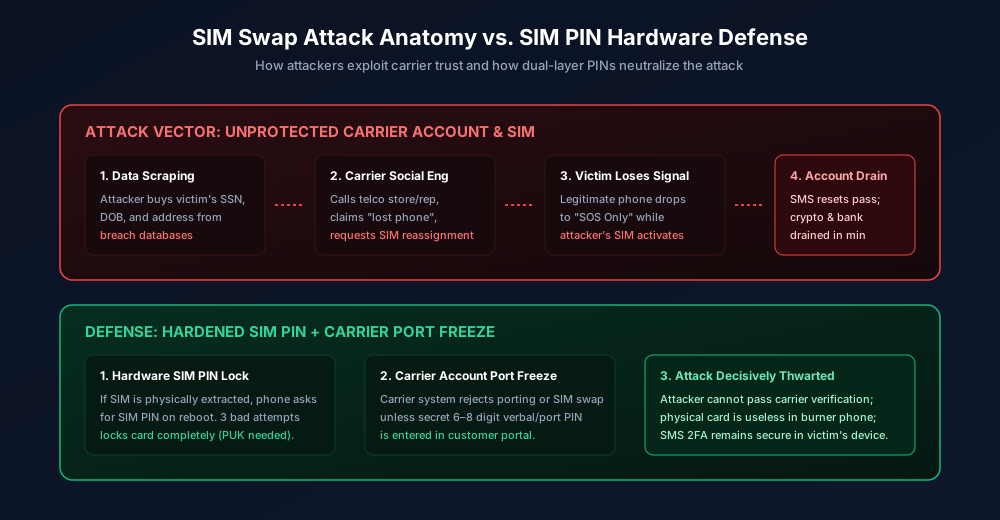
Figure 2.2: Detailed attack surface: Social-engineered carrier transfer vs. hardware SIM lock defense.
Physical SIM Lock vs. Carrier Account Port-Freeze PIN
To establish airtight protection, understand the critical difference between the two distinct PINs governing your mobile identity:
| Security Feature | Hardware SIM PIN (Card Lock) | Carrier Account / Port-Freeze PIN |
|---|---|---|
| Storage Location | On the physical SIM / eSIM chip itself | In the carrier's corporate backend database |
| Threat Neutralized | Physical device theft & SIM card ejection | Remote phone calls & social engineering at telco stores |
| Lockout Mechanism | Strict 3 wrong attempts -> PUK lockout | Account freeze / verbal passcode check |
| Configuration Place | iPhone Settings or Android Security Settings | Carrier App (My Verizon, MyAT&T, T-Life) |
Step 1: Enabling Hardware SIM PIN on iPhone and Android
How to Set a SIM PIN on iPhone (iOS 17 & iOS 18)
- Open Settings > Cellular (or Mobile Service).
- Tap SIM PIN.
- Toggle the switch to ON.
- Enter the carrier default PIN (see table below). Do NOT guess! If you enter the wrong code 3 times, your SIM locks permanently.
- Tap Change PIN, enter the default PIN again, then set your custom 6-to-8-digit PIN.
How to Set a SIM PIN on Android (Samsung Galaxy & Google Pixel)
- Open Settings > Security & Privacy.
- Scroll down and tap More security settings > SIM card lock (on Samsung: Other security settings > Set up SIM card lock).
- Toggle Lock SIM card to ON.
- Enter your carrier default PIN and tap OK.
- Select Change SIM card PIN and enter your strong personal code.
Default Carrier SIM PINs (United States & International)
- Verizon Wireless: Default is
1111 - AT&T: Default is
1111 - T-Mobile USA: Default is
1234 - Sprint / Boost Mobile: Default is
1234 - EE / Vodafone / O2 (UK): Default is
0000or1234
Avoid using obvious patterns like birth years, street numbers, or sequential sequences. Generate an unpredictable 6-to-8-digit numeric code using our 6-Digit PIN Generator or Random PIN Generator, and read our study on the most common PINs to avoid.
Step 2: Activating Carrier Account Port-Freeze & Number Lock
A hardware SIM PIN stops physical theft, but it does NOT prevent a carrier employee from transferring your line remotely. To block remote swaps, activate your carrier's Port Freeze / Number Lock feature:
- Verizon "Number Lock": Open the My Verizon app > Account > Security > Number Lock. Turn the toggle ON for all phone lines on your family plan. Once enabled, no customer service representative can port your number without biometric authentication in the app.
- AT&T "Port Freeze": Log in to myAT&T > Profile > Sign-in info. Set an 8-digit Wireless Passcode (separate from your online account password). Call AT&T fraud prevention (611) and explicitly ask for a Fraud Port Freeze on your lines.
- T-Mobile "SIM Protection" (Port Validation): Open the T-Life / T-Mobile app > More > Profile > Privacy & Security > SIM Protection. Toggle SIM Protection ON. This blocks unauthorized SIM changes online or in retail stores unless customer verification is completed in-app.
What to Do If Your SIM Is Blocked (PUK Code Recovery)
If you or someone else enters the wrong SIM PIN three times, your device displays "SIM PUK-Locked" and network services are completely disabled. Do NOT guess the PUK! Entering an incorrect PUK 10 times will permanently destroy the SIM chip, requiring a physical replacement.
To retrieve your PUK safely:
- Log in to your carrier's web portal from a laptop or tablet via Wi-Fi.
- Navigate to Device Management > View SIM Card Details > Get PUK Code.
- Alternatively, call your carrier's fraud support hotline from a landline or family member's phone and verify your identity using your secret account password.
The Ultimate Long-Term Fix: Phase Out SMS 2FA
Hardening your SIM card and carrier account closes the major attack vectors, but relying on SMS for two-factor authentication remains fundamentally fragile. Wherever possible, remove your phone number from sensitive accounts:
- Switch to Authenticator Apps: Use TOTP apps like 1Password, Bitwarden, or Google Authenticator. Because TOTP tokens are generated locally using the HMAC-SHA1 algorithm on your device hardware, an attacker with your phone number cannot generate valid tokens.
- Adopt FIDO2 Passkeys: Standardize on passkeys across Google, Apple, Amazon, and GitHub. Passkeys are completely decoupled from telephone infrastructure.
- Use a Secondary VoIP Number: If a legacy bank or service strictly demands a phone number for SMS, use an independent Google Voice or MySudo VoIP number protected by hardware 2FA rather than your primary cellular carrier number.
Frequently Asked Questions
Will enabling a SIM PIN ask me for the code every time I unlock my phone?
No. Your SIM PIN is ONLY requested when you power on your device, restart your phone, or remove and reinsert the SIM card. During normal daily use, you unlock your screen using Face ID, Touch ID, or your screen passcode without entering your SIM PIN.
Can a thief bypass a SIM PIN by converting my physical SIM to an eSIM?
No. An eSIM cannot be downloaded or transferred without accessing the device operating system or authenticating into your carrier account. Furthermore, modern eSIMs support hardware profiles protected by the device Secure Enclave.
What is the difference between my screen lock passcode and my SIM PIN?
Your screen passcode unlocks your phone operating system (apps, photos, messages). Your SIM PIN unlocks access to the cellular radio antenna and SIM card memory. If an iPhone is stolen, a thief cannot guess your screen passcode, but without a SIM PIN they could eject the SIM and place it into their own unlocked phone to intercept your text messages.
What is a PUK code and where do I find it?
PUK stands for Personal Unblocking Key. It is an 8-digit master cryptographic key generated by your carrier. You can find your PUK printed on the original plastic card your SIM came attached to, or by logging into your carrier online account dashboard under device settings.
Related password security guides
Best Password Practices for Small Businesses
A practical small business password safety guide covering password managers, MFA, shared accounts, staff changes, and admin access.
Bulk Password Generator Risks
Learn when bulk password generation is useful, when it creates risk, and how teams should handle many new passwords safely.
Business Password Safety Checklist
Use this practical password safety checklist to protect business email, admin accounts, cloud tools, freelancers, and shared access.
The tools work without analytics. Optional cookies help us understand page visits; passwords and form values are never collected.