
Default Router Passwords List: Risks and How to Harden Your Gateway in 5 Minutes
Build a compliant 2026 small business password policy with NIST length rules, password manager rollout steps, and MFA enforcement checklists.
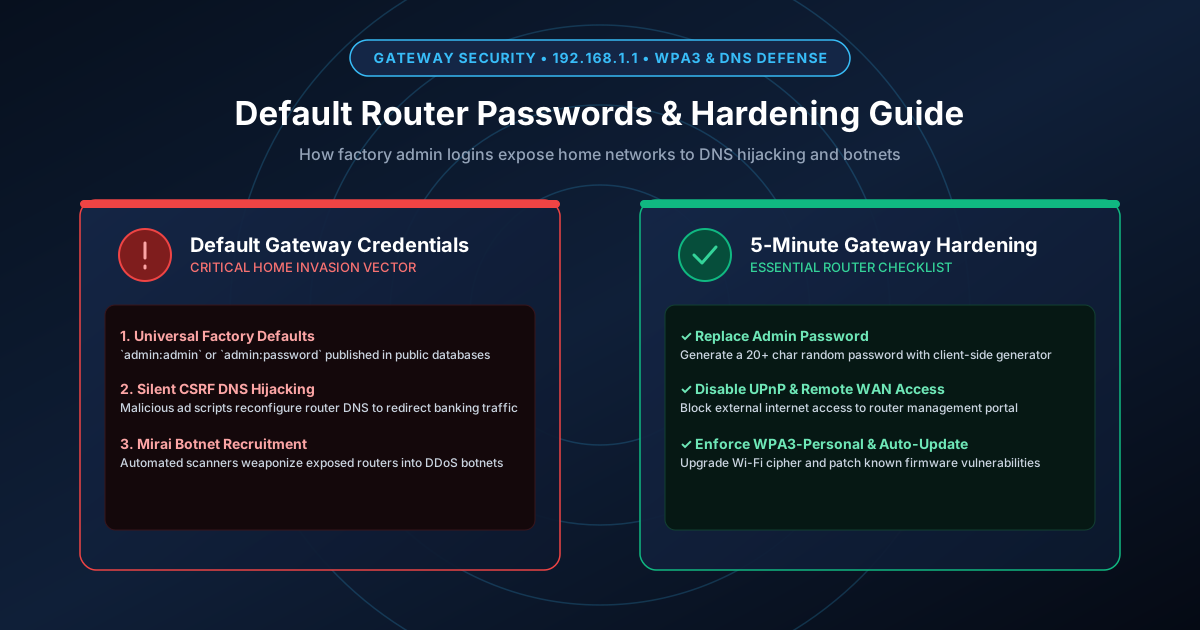
Figure 1.1: Gateway security: Replacing factory default router logins to protect the home network perimeter.
Quick Answer: Retaining factory-default router credentials (such as admin:admin or admin:password) exposes every smartphone, computer, smart TV, and IoT appliance on your local network to complete compromise. Attackers exploit default logins via automated internet port scanners or drive-by Cross-Site Request Forgery (CSRF) web scripts that silently rewrite your router's DNS settings. Securing your gateway takes under five minutes: log into 192.168.1.1 or 192.168.0.1, set a unique 20-character admin password, disable Universal Plug and Play (UPnP) and Remote WAN Management, and enforce WPA3 Wi-Fi encryption.
The Default Router Password Problem
Most consumers change their Wi-Fi password when setting up a new router, but over 70% forget to change the administrative password that protects the router's web settings portal. Because router manufacturers ship hardware with predictable credentials printed on stickers or published in public databases, anyone with brief physical access or network connectivity can gain root gateway control.
Below is a quick reference table of standard factory administrative logins across major router manufacturers:
| Manufacturer | Default IP Gateway | Default Username | Default Password | Vulnerability Level |
|---|---|---|---|---|
| Netgear | 192.168.1.1 / routerlogin.net | admin | password | Critical (Widely scanned) |
| TP-Link | 192.168.0.1 / tplinkwifi.net | admin | admin | Critical (Universal match) |
| ASUS | 192.168.1.1 / router.asus.com | admin | admin | Critical (Universal match) |
| Linksys | 192.168.1.1 | admin | admin (or blank) | Critical (Empty password) |
| D-Link | 192.168.0.1 | Admin | (Blank / No password) | Critical (Zero auth) |
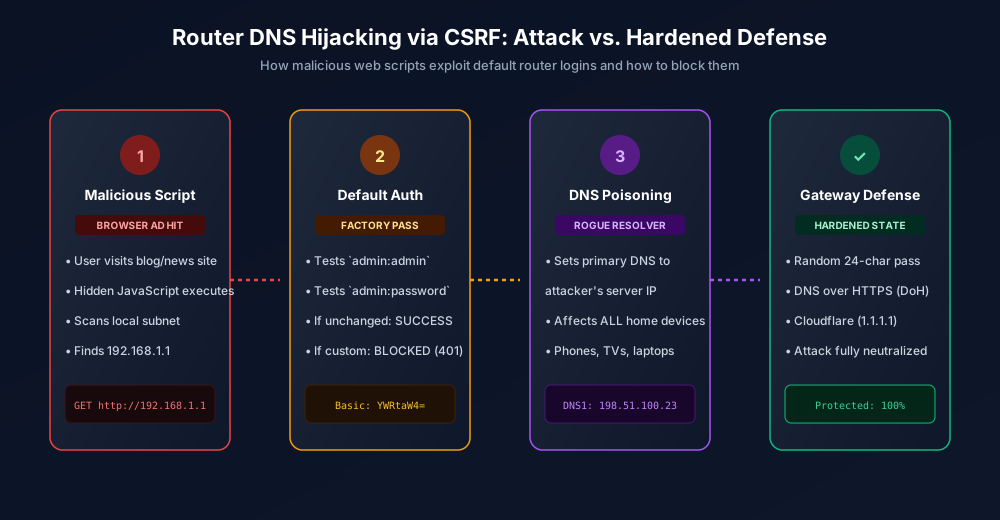
Figure 1.2: Cross-Site Request Forgery (CSRF) DNS hijacking attack pipeline and gateway defense.
How Attackers Exploit Unchanged Router Passwords
1. Drive-By Browser CSRF (DNS Hijacking)
You do not need to download a virus for your router to be hacked. While browsing a legitimate news or entertainment website, a malicious banner ad (malvertising) loads hidden JavaScript in your browser. This script makes silent background HTTP requests to http://192.168.1.1 or http://192.168.0.1 with standard Base64 headers for admin:admin.
If your router accepts the default login, the malicious script issues a command to change your primary DNS server to a rogue DNS resolver controlled by cybercriminals (e.g., 198.51.100.23). When you subsequently type chase.com or bankofamerica.com into your browser, the rogue DNS server redirects you to an identical phishing clone. Because the compromise occurred inside your router, antivirus software on your computer detects nothing.
2. Mirai and IoT Botnet Enlistment
Automated malware botnets (such as Mirai, Gafgyt, and Mozi) continuously scan IPv4 address space for open port 80 (HTTP), 443 (HTTPS), 22 (SSH), and 23 (Telnet). When an unpatched or default-credential router responds, the botnet logs in, downloads a worm payload into router flash memory, and enlists your home internet bandwidth into distributed denial-of-service (DDoS) attack armies.
The 5-Minute Router Hardening Checklist
Follow these steps to lock down your gateway completely:
- Log into Your Gateway Dashboard: Open your web browser and navigate to your gateway IP:
# Common Gateway IP Addresses http://192.168.1.1 http://192.168.0.1 http://10.0.0.1 (Xfinity / Comcast) - Change Administrative Password: Under Administration or System Settings, locate the administrator password field. Replace the default with a 20-to-24 character random password generated by our client-side, zero-knowledge Password Generator or 24-Character Generator. Store this password in your password manager vault.
- Disable Remote WAN Management: Locate the "Remote Management" or "Web Access from WAN" setting and ensure it is turned OFF. This prevents anyone outside your local physical Wi-Fi network from reaching the router's login screen.
- Turn Off UPnP (Universal Plug and Play): While UPnP simplifies automatic port-forwarding for gaming consoles, it contains critical security flaws that allow local malware to open arbitrary firewall ports without user authorization. Disable UPnP and configure port forwards manually when needed.
- Enforce Modern Wi-Fi Encryption (WPA3 or WPA2-AES): Never use legacy WEP, WPA, or TKIP. Switch your SSID encryption to WPA3-Personal or WPA2/WPA3 Mixed Mode. Generate a high-entropy 20-character passphrase using our Wi-Fi Password Generator.
- Enable Automatic Firmware Updates: Keep router firmware current to patch remote code execution vulnerabilities. If your router does not support automatic updates, calendar a quarterly reminder to check the manufacturer's support site.
For more home and infrastructure security guidance, read our tutorial on WPA3 Wi-Fi password security and our developer guide on securing SSH passphrases.
Frequently Asked Questions
Is my Wi-Fi password the same as my router admin password?
No. Your Wi-Fi password (WPA2/WPA3 key) allows your devices to connect to your wireless network. Your router admin password unlocks the administrative web portal (192.168.1.1) where firewall rules, DNS resolvers, and network settings are configured. Having a strong Wi-Fi password does not protect you if your admin password is still "admin".
What should I do if I forgot my customized router admin password?
You must perform a hardware factory reset. Locate the small physical reset pinhole on the back or bottom of the router. With the power on, press and hold the button with a paperclip for 15 to 30 seconds until the router lights blink. This resets the router back to its factory default settings, allowing you to log in with the default credentials printed on the router sticker and immediately set a fresh, strong password.
Can hackers access my router if Remote Management is disabled?
Disabling Remote Management blocks external attackers on the public internet from reaching your login page directly. However, an attacker can still compromise your router from the inside via drive-by CSRF attacks loaded through malicious ads on your computer. That is why changing the admin password is mandatory even with Remote Management disabled.
Why do security experts recommend disabling UPnP on home routers?
UPnP was designed to allow gaming consoles and smart devices to open ports automatically without requiring manual configuration. However, UPnP lacks authentication; any malicious software or compromised smart bulb on your home network can quietly open ports through your firewall and expose internal devices to the public internet.
Related password security guides
Best Password Practices for Small Businesses
A practical small business password safety guide covering password managers, MFA, shared accounts, staff changes, and admin access.
Bulk Password Generator Risks
Learn when bulk password generation is useful, when it creates risk, and how teams should handle many new passwords safely.
Business Password Safety Checklist
Use this practical password safety checklist to protect business email, admin accounts, cloud tools, freelancers, and shared access.
The tools work without analytics. Optional cookies help us understand page visits; passwords and form values are never collected.